How to Search Domains Without a Keyword: Browse, Filter, and Discover
Every domain search tool starts the same way: type a keyword, hit search, read the results. That works when you know what you are looking for. But a large share of domain research starts without a keyword at all. You want to see what is getting registered today. You want to scan expired domains under five characters. You want to browse the marketplace for pure alphabetic names on a specific TLD. The question is not "what matches this word" but "what is out there."
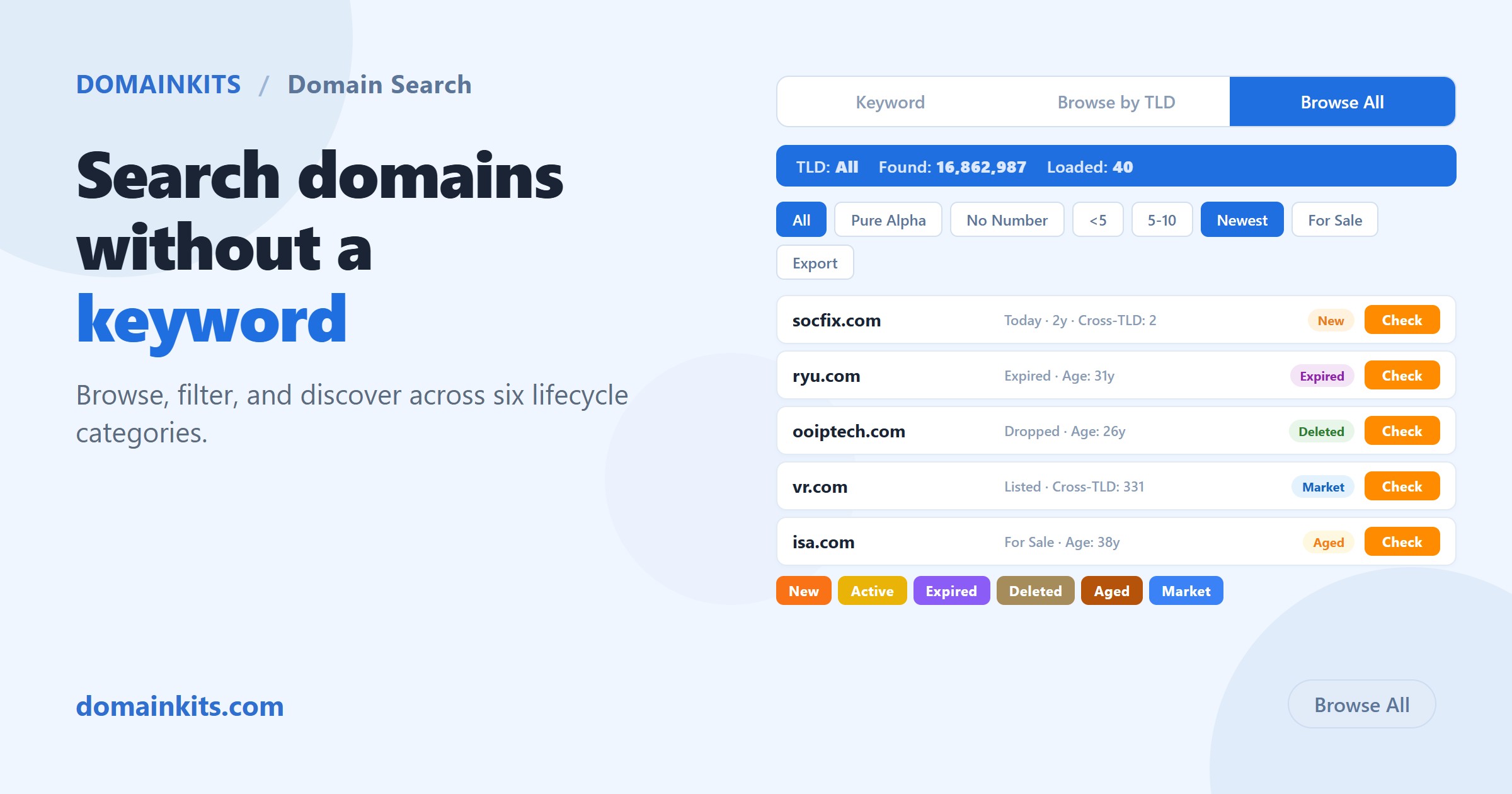
Browse All is a feature across all six DomainKits search categories that addresses this directly. Instead of requiring a keyword to start, it opens the entire database for a given category, then lets you narrow with filters. The workflow is inverted: see everything first, then decide what matters.
What does Browse All do?
On each of the six DomainKits search pages, there are three tabs above the search box: Keyword, Browse by TLD, and Browse All. Keyword is the traditional search. Browse by TLD lets you explore a single extension. Browse All removes both constraints: it loads the full dataset for that lifecycle category and gives you a filter bar to shape it.
Click Browse All on the New Domain Database, for example, and the page immediately begins streaming results from the entire pool of newly registered domains, over 16 million names from the past 60 days. No keyword required. The status bar shows the total count, and results load progressively as you scroll.
From there, you filter. The filter bar is where Browse All becomes useful: without it, opening a 16-million-row dataset would be noise. With it, you can cut the dataset down to exactly the slice you need in a few clicks.
Six categories, one workflow
Browse All is available on every DomainKits search page. Each category covers a different stage of the domain lifecycle, and the filter options are tuned to what matters at that stage:
- New covers domains registered in the past 60 days. Filters include days since registration (0-10, 10-20, 20+), registration period (1 year, 2-5 years, 6+ years), and for-sale status. This is the category where freshness matters most.
- Active covers the full inventory of currently registered gTLD domains, over 240 million names. Filters focus on structure (type, length) and for-sale status. Sorting options include alphabetical order, which is useful for scanning naming patterns in a TLD.
- Expired covers domains that have entered the expiration pipeline: expired, in redemption, or pending delete. Filters include expiry stage, hold status, and domain age (0-5, 5-10, 10-20, 20+ years). The age filter is particularly useful here, because an expired 15-year-old domain carries different value than one registered last year.
- Deleted covers domains that have completed the deletion cycle and are available for standard registration. Filters include hold status, age, and a "newly dropped" toggle that surfaces the freshest deletions.
- Aged covers domains with five or more years of registration history. The age filter here uses higher bands (5-10, 10-15, 15-20, 20+ years), and results can be sorted by age, length, or cross-TLD count.
- Market covers domains currently listed for sale across multiple marketplaces. The unique filter here is the marketplace selector: Afternic, Sedo, Atom, HugeDomains, and others. Browse All on Market lets you scan the combined inventory of every marketplace at once, or narrow to a single platform.
The common filters across all categories are Type (Pure Alpha, Pure Number, No Number, No Hyphen), Length (under 5, 5-10, 11-15, 15+), and Exclude (comma-separated terms to filter out noise). Every category also offers Export for registered users.
How is this different from a keyword search?
A keyword search answers: "which domains contain this word?" Browse All answers a different class of question: "what does the landscape look like right now?"
The practical difference shows up in three scenarios:
Discovery without a hypothesis. You do not have a keyword because you have not decided on one yet. Maybe you are researching naming patterns, scanning a TLD you have not explored, or looking for short domains that happen to be available. Browse All gives you the raw material to form a hypothesis, rather than requiring one to start.
Structural filtering. Some of the most valuable domain queries are about structure, not content. "Show me all pure-alpha domains under 5 characters that expired this week" is a query about shape, and it does not need a keyword. Browse All with type and length filters handles this natively.
Market scanning. Domain investors and brand managers often need to survey a category rather than search it. What is the composition of today's new registrations? How many expired domains are sitting in redemption with 10+ years of age? What does the marketplace inventory look like on .ai right now? These are browsing questions, and the keyword search box is the wrong entry point for them.
You can still type a keyword after Browse All loads. A secondary search box inside the Browse All view lets you filter within the loaded results without switching back to keyword mode.
Filters that matter, by use case
The filter bar carries more options than most users will need at once. Here is which filters matter for common tasks:
Finding short, clean domains. Set Type to Pure Alpha, Length to under 5, and browse. This works on any category: short new registrations, short expired names available for pickup, short aged domains with history. The same structural query across different lifecycle stages gives you different results with different value profiles.
Monitoring marketplace inventory. Browse All on Market with no keyword shows the full combined listing across all connected marketplaces. Filter by marketplace to compare inventory across platforms, or by length and type to find the segment you are interested in. Sort by shortest to surface the premium inventory first.
Catching fresh drops. Browse All on Deleted with the "Newly Dropped" toggle shows domains that just completed the deletion pipeline. Add the age filter (10-20y or 20+y) to surface aged domains that are now available at standard registration cost. These are the domains that, 24 hours earlier, were in pending delete and not yet registrable.
Reading registration patterns. Browse All on New, sorted by newest, is a live stream of what is getting registered right now. Filter by registration period to separate speculative one-year registrations from committed multi-year ones. Filter by for-sale status to see how much of the daily flow is inventory versus intent to build.
Working with the results
Each domain in the Browse All results carries the same data it would in a keyword search: the domain name, its parsed word segmentation, creation or expiry date, registration period or age, cross-TLD count, and quick-action links (WHOIS, DNS, safety check, make offer). The cross-TLD count is especially useful in Browse All mode, because it surfaces deliberate registrations, names claimed on multiple extensions at once, without needing to search for them by keyword.
If a result catches your attention, you do not need to leave the page to investigate. Click the domain name or the Check button to open its detail view. From there, WHOIS history, DNS records, and safety reports are one click away.
Registered users can export any filtered Browse All view. The export reflects whatever filters are active, so you can use Browse All as a dataset builder: apply filters until the visible results are the slice you need, then export.
Start browsing
Pick the category that matches your current question:
- Browse new registrations from the past 60 days
- Browse active domains across 240M+ registered names
- Browse expired domains in the expiration pipeline
- Browse deleted domains available for registration
- Browse aged domains with 5 to 20+ years of history
- Browse marketplace listings across multiple platforms
Click Browse All, apply one filter, and see what surfaces. The best domain finds often come from looking at a category you did not plan to search.
Related reading: for a deeper guide to newly registered domain search, see Search Newly Registered Domains Without Downloading a Single List.
Get new articles by email
No account needed. At most one email a day, only when there is something new.
We use your email only to send new articles. Every email has a one-click unsubscribe link. Privacy policy